Archive
GREAT VIDEO – #Citrix #XenDesktop vs. #VMware #Horizon #View installation video
This is really funny! Have a look at this video to see how you can compare a XenDesktop and a Horizon View installation side-by-side!
And another thing that is kind of funny is that VMware still compares Horizon View with XenDesktop 5.6: https://www.vmware.com/files/pdf/techpaper/VMware-View-vs-Citrix-XenDesktop-Datasheet.pdf
//Richard
#Citrix #StoreFront subscription database replication, #GSLB, #NetScaler
Ok, so we’ve all started to use StoreFront (or have U?) and find out that there are A LOT of things that you have to do in order to get it to work as you most probably want it to.
This post is more around how you ensure that the StoreFront architecture supports an enterprise with multiple sites while still having a concistent end-user experience.
Just imagine that you’ve built your architecture out in a true high availability manner with global server load balancing across all products used in the stack to deliver your Windows apps and desktops to your end-users. It may look something similar to this:

In this view you can see that we’ve setup GSLB to ensure that external (Internet) connected users and devices are being connected to a NetScaler Gateway vServer in either London or Miami, and from there the NetScaler and the session profile that communicates with StoreFront (SF1 and 2 in each site) is also load balanced using GSLB to ensure high availability. So everything seems good, right! But no… consider that you as an end-user is being connected to the Miami site and that StoreFront group that has a subscription database containing all the apps and desktops etc. that you have selected and added to your workspace. You will see all these icons by default now when you login to Miami, but you will not see them in the case Miami goes down for some reason or if you travel to London and then gets connected to that StoreFront group as I try to show by this picture:

Penetration testing tips for your NetScaler – via @neilspellings – #Citrix, #NetScaler
This is a really good blog post by Neil! Keep up the good work! 😉
When working on Netscaler implementation projects, most of which tend to be internet-facing, one aspect that most organisations always perform is a penetration test. Having been through a number of these over the years, I thought it would be a good idea to share my experiences and some of the common aspects that get highlighted, to enable you to “pass first time” without having any remedial actions to work through and costly re-tests to perform.
The Netscaler has a number of IPs (NSIP, SNIP/MIP, Access Gateway VIPs etc) so what should you test against? The answer may well depend on corporate policy, but I usually test the internet-facing Access Gateway VIP and the management interface (NSIP). I also usually include StoreFront in any internal tests as this is an integral component of the overall solution, but I won’t cover StoreFront in this post.
Of course technically “bad guys” can only reach internet-facing IP addresses (as permissioned by your external firewall) but I recommend including internal-facing IPs for any DMZ-hosts to understand your exposure should another DMZ host get compromised (as your attacker can now potentially access internal IPs so the external firewall rules no longer protect you)
- Remove unnecessary management tools (telnet and FTP are considered insecure so should alwaysbe disabled). Also remove SNMP if your Netscalers are not being monitored or managed by an external monitoring service.

- Ensure that “Secure access only” is selected to force SSL access to the GUI
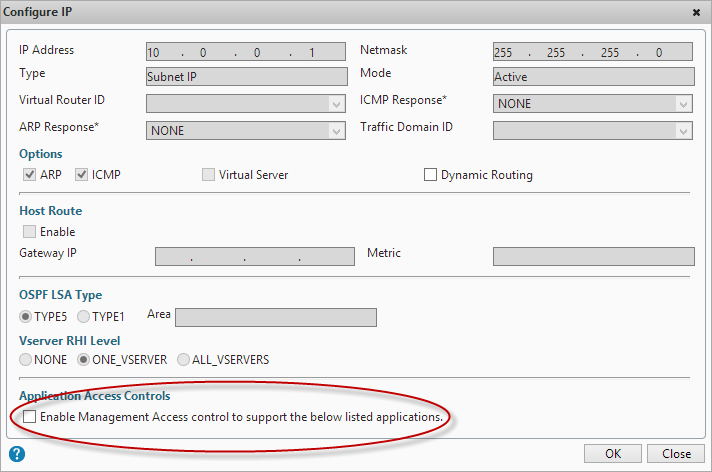
- Ensure that management applications are only available on an internal IP (NSIP or SNIP). Open the IP properties for the IP addresses that won’t be used for management and untick “Enable management access”
- Change the default nsroot password to something long (obvious you’d think but you’d be amazed how many Netscalers I’ve seen that I can just log straight into using the default credentials!)
- If you have set up integrated AD authentication via LDAP for administrative access to the GUI, ensure that you have protected access using a filter group, otherwise anyone with a valid AD account will be able to access your Netscaler GUI (although they won’t be able to make any changes, it’s still not a good idea them having this access!)
- If you are using…
Continue reading here!
//Richard
#Gartner Magic Quadrant for Application Delivery Controllers – #ADC, #NetScaler, #Citrix
Citrix is positioned in the Leaders Quadrant for Application Delivery Controllers for the seventh consecutive year: the Gartner Magic Quadrant Report focuses on vendor’s ability to solve complex application deployment challenges. Don’t miss this chance to learn from Gartner’s independent research.
NetScaler is well established as the industry’s leading internet delivery system, touching an estimated 75 percent of internet users each day. Citrix builds on this leadership to provide the world’s most advanced cloud networking platform, giving customers a single, integrated solution that brings the elasticity, simplicity and expandability of the cloud to any network. This combination helps customers deliver public and private cloud services with the best performance, security and reliability to any device. Learn more about the importance of this recognition by reading this recent press release.

Source: Gartner (October 2013). The full 2013 Gartner Application Delivery Controller Magic Quadrant, report can be viewed on the Gartner website.
//Richard
#Citrix #ShareFile StorageZone controller 2.2 released – #BYOD
If you haven’t seen this then have a look at what 2.2 now has to offer!
- StorageZones for ShareFile Data — You can store ShareFile data in either Windows Azure cloud storage or a private single-tenant storage system that you maintain. You specify a storage option when you configure StorageZones for ShareFile Data.

What’s new
StorageZones Controller 2.2 provides the following enhancements:
Support for Windows Azure storage containers — If you have a Windows Azure account, you can use an Azure storage container for your private data storage instead of a locally-maintained share.
To get started create a new zone and choose the Azure option when you configure StorageZones for ShareFile Data.

Connectors to SharePoint root-level sites — You can now create a StorageZones Connector for a SharePoint root-level site or site collection, enabling users to navigate all of the subsites and document libraries in the site. To provide more limited access, you can continue to create connectors to individual SharePoint document libraries.
Connectors to user home drives based on Active Directory — You can now create a Connector for network file shares that reliably points to user home drives. To create a connector for user home drives, set the UNC path to the variable %homedrive%. StorageZones Controller will then create connectors based on the user home folder path property in Active Directory.
Installation on non-English operating systems — You can install the English version of StorageZones Controller on the following operating system versions: French, German, Japanese, Simplified Chinese, and Spanish.
Read more here!
//Richard
#Netscaler Insight and Integration with #XenDesktop Director – via @msandbu
Great blog post by Marius! 🙂
This is another one of Citrix hidden gems, Netscaler Insight. This product has been available from Citrix some time now, but with the latest update in became alot more useful. Insight is an virtual applance from Citrix which gathers AppFlow data and statistics from Netscaler to show performance data, kinda like old Edgesight. (NOTE: In order to use this functionality against Netscaler it requires atleast Netscaler Enterprise or Platinum)
Insight has two specific functions, called Web Insight and HDX insight.
Web Insight shows traffic related to web-traffic, for instance how many users, what ip-adresses, what kind of content etc.
HDX Insight is related to Access Gateway functionality of Citrix to show for instance how many users have accessed the solution, what kind of applications have they used, what kind of latency did the clients have to the netscaler etc.
You can download this VPX from mycitrix under Netscaler downloads, important to note as of now it is only supported on Vmware and XenServer (They haven’t mentioned any support coming for Hyper-V but I’m guessing its coming.
The setup is pretty simple like a regular Netscaler we need to define an IP-address and subnet mask (Note that the VPX does not require an license since it will only gather data from Netscaler appliances that have a platform license and it does not work on regular Netscaler gateways)
After we have setup the Insight VPX we can access it via web-gui, the username and password here is the same as Netscaler nsroot & nsroot

After this is setup we need to enable the insight features, we can start by setting up HDX insight, here we need to define a expression that allows all Gateway traffic to be gathered.
Here we just need to enable VPN equals true. We can also add mulitple Netscalers here, if you have a cluster or HA setup we need to add both nodes.

After we have added the node, just choose configure on the node and choose VPN from the list and choose expression true.
#Citrix #Receiver for Linux 13 released
Finally Citrix has released a Receiver version for Linux that for instance has StoreFront support! Can’t wait to try it out and see if it gives the same user experience etc like the one on OS X and Windows!
Here you have some details about it and links to the product documentation:
Access Windows applications and virtual desktops, as well as web and SaaS applications. Enable anywhere access from your Linux thin client/desktop or use web access.
What’s new
The following new features are available in this release:
- Support for XenDesktop 7 features – Receiver supports many of the new features and enhancements in XenDesktop 7, including Windows Media client-side content fetching, HDX 3D Pro, HDX RealTime webcam compression, Server-rendered Rich Graphics, and IPv6 support.
Note: Link-local network addresses are not supported in IPv6 environments. You must have at least one global or unique-local address assigned to your network interface.
- VDI-in-a-Box support – You can use Receiver to connect to virtual desktops created with Citrix VDI-in-a-Box.
- Self-service UI – A new graphical user interface (UI), like that in other Citrix Receivers, replaces the configuration manager, wfcmgr. After they are set up with an account, users can subscribe to desktops and applications, and then start them.
- Deprecated and removed utilities – The pnabrowse command-line utility is deprecated in favor of the new storebrowse command-line utility. The icabrowse and wfcmgr utilities have been removed.
- StoreFront support – You can now connect to StoreFront stores as well as Citrix XenApp sites (also known as Program Neighborhood Agent sites).
- UDP audio support – Most audio features are transported using the ICA stream and are secured in the same way as other ICA traffic. User Datagram Protocol (UDP) Audio uses a separate, unsecured, transport mechanism, but is more consistent when the network is busy. UDP Audio is primarily designed for Voice over IP (VoIP) connections and requires that audio traffic is of medium quality (that is Speex wideband) and unencrypted.
- Packaging – An armhf (hard float) Debian package and tarball are now included in the download packages. In addition, the Debian package for Intel systems uses multiarch (a Debian feature) for installations on 32- and 64-bit systems. 32-bit binaries are also available in RPM packages.
- System Flow Control – Video display has been enhanced on low-performance user devices that connect to high-performance servers. In such setups, System Flow Control prevents sessions becoming uncontrollable and unusable.
- Localization – Receiver is now available in German, Spanish, French, Japanese, and Simplified Chinese.
- Keyboard improvements – You can now specify which local key combination (Ctrl+Alt+End or Ctrl+Alt+Enter) generates the Ctrl+Alt+Delete combination on a remote Windows desktop. In addition, a new option supports Croatian keyboard layouts.
- Deferred XSync – While one frame is still on screen, Receiver can now decode tiles for the next frame. This provides a performance improvement compared with previous releases, in which Receiver waited for a frame to finish being displayed before decoding the next frame.
- Audio and webcam playback improvements – Various changes are implemented that conserve CPU cycles and reduce latency.
- Audio settings – Several new audio settings are now available in module.ini.
For more product and release info read here!
//Richard
Sizing #XenDesktop 7 App Edition VMs – #Citrix
A good update on VM sizing by Daniel Feller!
In the Mobilizing Windows applications for 500 users design guide, we made the recommendation to allocate 8vCPUs for each virtual XenDesktop 7 App Edition host (formerly known as XenApp). Spreading this out across a server with two Intel Xeon E5-2690 @2.9GHz processors and 192 GB of RAM, we were yielding about 200 users per physical server and roughly 50 users per virtual server.
Of course, the design guide is the end result of a lot of testing by the Citrix Solutions Lab. During the tests, we had the Solutions Lab compare many (and I mean many) different configurations where they changed the number of vCPU, RAM size, and RAM allocation (dynamic/static) as well as a few other things. All of these tests were done with Windows Server 2012 with Hyper-V. We ended up with the following:

A few interesting things:
- Dynamic vs static RAM in Hyper-V appeared to have little, if any, impact on overall scalability. The only time when the RAM allocation had a negative impact was when not enough RAM was allocated (no surprise there).
- The 8vCPU and the 4vCPU configurations resulted in very similar user concurrency levels. Get ready… The battle is about to begin as to whether we should use 8 or 4 vCPU. (Is anyone else besides me having flashbacks to 2009?)
A few years ago, we debated about using 2vCPU or 4vCPU for XenApp 5 virtual machines. A few years later, the debate is resurfacing but this time, the numbers have doubled: 4 or 8. Here is what you should be thinking about… VMs are getting bigger because the hardware is getting faster, RAM is getting cheaper and the hypervisors are getting better…
Continue reading here!
//Richard
#XenDesktop 7.1 Service Template Tech Preview for System Center 2012 Virtual Machine Manager – #SCVMM
This is interesting! Really good and can’t wait to try it out!
Introduction
Let’s face it, installing distributed, enterprise-class virtual desktop and server based computing infrastructure is time consuming and complex. The infrastructure consists of many components that are installed on individual servers and then configured to work together. Traditionally this has largely been a manual, error prone process.
The Citrix XenDesktop 7.1 Service Template for System Center 2012 Virtual Machine Manager (SCVMM) leverages the rich automation capabilities available in Microsoft’s private cloud offering to significantly streamline and simplify the installation experience. The XenDesktop 7.1 Service Template enables rapid deployment of virtual app and desktop infrastructure on Microsoft System Center 2012 private clouds. This Tech Preview is available now and includes the latest 7.1 version of XenDesktop that supports Windows Server 2012 R2 and System Center 2012 R2 Virtual Machine Manager.
Key Benefits:
- Rapid Deployment – A fully configured XenDesktop 7.1 deployment that adheres to Citrix best practices is automatically installed in about an hour; a manual installation can take a day or more.
- Reduction of human errors and the unwanted consequences – IT administrators answer 9 questions about the XenDesktop deployment, including the VM Network to use, the domain to join, the SQL server used to host the database, the SCVMM server to host the desktops, and the administrative service accounts to connect to each of these resources. Once this information is entered, the Service Template automation installs the XenDesktop infrastructure the same way, every time, ensuring consistency and correctness.
- Reduction in cost of IT Operations – XenDesktop infrastructure consistently configured with automation is less costly to support because the configuration adheres to best practice standards.
- Free highly skilled and knowledgeable staff from repeatable and mundane tasks – A Citrix administrator’s time is better spent focused on ensuring that users get access to the applications they need, rather than lengthy production installation tasks.
- Simplified Eval to Retail Conversion – Windows Server 2012 and later, as well as XenDesktop 7.1, support conversion of evaluation product keys to retail keys. This means that a successful POC deployment of the XenDesktop 7.1 Service Template is easily converted to a fully supported and properly configured production deployment.
- Easy Scale-Out for greater capacity – SCVMM Service Templates support a scale-out model to increase user capacity. For example, as user demand increases additional XenDesktop Controllers and StoreFront servers are easily added with a few clicks and are automatically joined to the XenDesktop site.
The XenDesktop Service Templates were developed and tested with the support of our friends and partners at Dell, who, in support of the release of XenDesktop 7.1 and the Service Template technical preview, are expected to launch new and innovative solutions that include these and other automation capabilities this quarter. These solutions are based on the Dell DVS Enterprise for Citrix XenDesktop solutions.
Simplification of Distributed Deployments
The XenDesktop 7.1 in-box installation wizard is a fantastic user experience that automatically installs all the required prerequisites and XenDesktop components in under 30 minutes. The result is a fully installed XenDesktop deployment, all on a single server, that is excellent for POCs and product evaluations. The installation and configuration challenges occur when you want to install XenDesktop in production, with enterprise-class scalability, distributed across multiple servers.
Manual Installation Steps

Citrix Project Accelerator updated – #XenDesktop
“Customize My Design”, the Design release of Project Accelerator is here! We listened to your feedback and have delivered the ability to change FlexCast, application delivery, profiles and over 30 other decisions for your XenDesktop architecture. Across these decisions you will now be able to:
- Tailor your design to fit organizational and end user needs
- Visualize how your design “tweaks” affect hardware sizing and architecture
- On-the-fly comparison of Citrix Recommendations to your design decisions
- Review “Architect Comments”, guidance from the Citrix experts for each Decision
“Customize my Design” is the next step for Project Accelerator; the application that simplifies getting your XenDesktop, XenApp, or XenClient deployment done successfully the first time. It’s the Citrix environment where customers, partners, and Citrites can design a desktop virtualization project that more closely suits their business priorities, end user needs, and organizational preferences. And it is back-stopped by the real-world experience of Citrix Consulting, so you can use the results in your project.
Check it out right now or read more about what Project Accelerator can do for you here. Then tell us what you like, and let us…
Continue reading here!
//Richard




 The IT Melting Pot!