Archive
#Citrix #Receiver for Win 8 and RT 1.3 now on the Windows Store
Blog post from Citrix on Windows RT and Win 8 pro devices and Receiver!
Our first official update for our touch-enabled Receiver for Windows RT and Windows 8 Pro devices! This version adds the ability to use multiple sessions as well as a number of usability improvements. It can be used with StoreFront or Web Interface deployments. Connections can be direct or through Access Gateway Enterprise Edition version 10.
Click here to try this version. It is still a good idea to ask your IT department if it can be used in your environment. IT managers can find details on configurations supported and settings at Citrix eDocs.
What’s new?
- Users can run multiple apps within a single session, switching between them with the in-session app bar.

- Sessions now use the keyboard layout and input language in effect on the device (as configured on the Windows 8 Language bar) whether its a physical and touch keyboard.
- A Refresh button on the My Apps and All Apps pages enables users to easily refresh the apps list.
- A default icon appears in My Apps, All Apps, and Search results until the correct app icon downloads.
And we have even more great things planned for the next update, including support for Access Gateway Enterprise 9.3 with…
Continue reading here!
//Richard
New v3 #AWS CloudFormation Template for #XenApp with support for #NetScaler and #StoreFront
Great info and post from Peter Bats!
Since Paul Wilson and myself first introduced a CloudFormation template in the blog “Jumpstarting your XenDesktop Farm in AWS with a CloudFormation Template,” we’ve added support for multiple Regions and Availability Zones in a v2 version of this CloudFormation template in the blog “Announcing the Multi-Region AWS CloudFormation Template for XenDesktop”.
We are now announcing the third version of our AWS CloudFormation template which adds the new Asia Pacific Sydney region and support for StoreFront and NetScaler Access Gateway Enterprise. This release makes use of the NetScaler VPX instances available via AWS MarketPlace, and replaces Web Interface with StoreFront to be able to support all the advanced features of our latest Citrix Receivers.
Version 3 of the CloudFormation JSON template can be downloaded from here.
We’ve also made a video available for you that walks you through the whole process on Citrix TV. Check it out here.
For detailed instructions on using the v3 CloudFormation template, download the setup guide here.
Using this new template, in only a couple of hours you’ve constructed a XenApp farm in your selected Region within the AWS cloud using Netscaler and StoreFront technology. You can use the farm for a number of purposes, including:
- Application Testing
- Business Continuity
- Proof-of-Concept
- Testing XenApp performance in the cloud
- Learning how to manage AWS resources
We welcome your…
Continue reading here!
//Richard
Demystifying Citrix Excalibur Architecture – via @kbaggerman
A great blog post by Kees Baggerman! 🙂
For all XenApp admins and consultants out there Project Avalon will bring a big change as we are used to having XenApp servers running on the (what seemed to be) everlasting Citrix Independent Management Architecture and we’re heading to Citrix FlexCast Management Architecture (already included in XenDesktop at this moment) and will be included in the Citrix Excalibur Architecture.
IMA
When looking up IMA in the eDocs you’ll find:
Independent Management Architecture (IMA) is the underlying architecture used in XenApp for configuring, monitoring, and operating all XenApp functions. The IMA data store stores all XenApp configurations.
Basically IMA exists to manage the XenApp or Presentation Server farms by enabling the communications between servers. As stated it transfers information about all XenApp functions like licenses, policies, sessions and server loads. All management tooling within these versions of Citrix’s PS/XA rely on this service for information.
According to Communication ports used by Citrix Technologies IMA uses the following ports:
| Ports | Source | Prot. | Comment |
| 2512 | Common Citrix Communication Ports | TCP | Independent Management Architecture (IMA) |
| 2513 | Access Gateway 5.0 Controller administration | TCP | IMA-based Communication |
As we can see IMA uses 2512 (by default) to communicate with other servers and the Access Gateway Controller uses 2513 (by default) for IMA-based communication. The port IMA uses can be changed or queried via the commandline tool IMAPORT.
Brian Madden did a blogpost way back in 2007 but it’s definition of IMA is still current:
Independent Management Architecture is:
- A data store, which is a database for storing MetaFrame XP server configuration information, such as published applications, total licenses, load balancing configuration, MetaFrame XP security rights, and printer configuration.
- A protocol for transferring the ever-changing background information between MetaFrame XP servers, including server load, current users and connections, and licenses in use
FMA
With the introduction of XenDesktop we got a new architecture called Flexcast Management Architecture. This new architecture has got an agent-based setup where we can install the operating system including the basic applications that need to be installed and after that we can install an agent. This agent registers itself to a controller and is offered through StoreFront to the end user.
This will be delivered by two different types of agents, one to support Windows Server OS’s and one for Windows Desktop OS’s.
Andrew Wood did an article on Excalibur and used this diagram to explain the architecture:
 Citrix FlexCast Management Architecture
- Receiver provides users with self-service access to published resources.
- StoreFront authenticates users to site(s) hosting resources and manages stores of desktops and applications that users access – Web Interface as a platform is essentially resting, but it will cease to be.
- Studio is a single management console that enables you to configure and manage your deployment, a dramatic reduction over the 23 consoles you could well have today. Studio provides various wizards to guide you through the process of setting up an environment, creating workloads to host applications and desktops, and assigning applications and desktops to users.
- Delivery Controller distributes applications and desktops, manages user access, and optimizes…
Continue reading here!
//Richard
Heads Up – issues with Access Gateway Plug-in for Mac OS X Version 2.1.4 – #Citrix, #NetScaler
Well, I guess that you’ve already read all the good things about the new capabilities of the newer Access Gateway plug-in, Receiver and Access Gateway Enterprise that together with StoreFront will add additional features and functions that haven’t existed before. It’s now built to work together with the Receiver on the Windows and Mac OS X platforms and promises a lot by various blog posts from Citrix and others (incl. myself).
Here is an example of what it can (should) do: What’s new with Access Gateway MAC Plug-in release 2.1.4
But is the Access Gateway Plug-in that great? Well, before you plan to implement version 2.1.4 on OS X and especially if you want to leverage the SSL VPN functionality and host checks (EPA) then read the Important notes and Known issues for this release:
Important Notes About This Release:
- The Access Gateway Plug-in for Mac OS X Version 2.1.4 supports Citrix Receiver Version 11.7
- Import the secure certificate for Access Gateway into the Keychain on the Mac OS X computer.
- The Access Gateway Plug-in for Mac OS X Version 2.1.2 and earlier versions are not supported on Mac OS X Version 10.8.
- Endpoint analysis scans for antivirus, personal firewalls, antispam, Internet security, and EPAFactory scans are not supported for Mac OS X.
- Client certificate authentication is not supported for Mac OS X.
First of all I’d say that these notes are not that great if you ask me! Why do I have to add the cert into the Mac Keychain? Why doesn’t the plug-in support the more “advanced” host checks like personal firewalls, certificates etc.?
Wait, it get even worse!! And before you go to the whole list I’d highlight these top ones that I’m kind of surprised about:
- It doesn’t support LAN access
- Upgrading doesn’t work
- Doesn’t apply proxy settings configured in session profile
- It doesn’t support SAN certificates
- Users cannot start the Access Gateway plug-in if the Receiver is already started, you first have to shut down the Receiver
Here you see the full Known Issues list for this release:
- When users disable wireless on a Mac OS X computer and connect by using a 3G card, the Access Gateway Plug-in does not upgrade automatically through Citrix Receiver. If users select Check for Updates to upgrade the plug-in, the upgrade fails and users receive the error message “Updates are currently not available.” [#45881]
- If you run stress traffic for HTTP, HTTPS, and DNS simultaneously, the Access Gateway Plug-in fails. [#46348]
- When users disable wireless on a Mac OS X computer and connect by using a Vodafone Mobile Broadband Model K3570-Z HSDPA USB 3G stick, the Access Gateway plug-in does not tunnel traffic. [#256441]
- If you configure an endpoint analysis policy and also enable the client choices page and proxy servers in a session profile, occasionally a blank choices page appears after users log on. When you disable the choices page in the session profile, the choices page appears correctly. [#316331]
- If users connect to Access Gateway with the Access Gateway Plug-in for Mac OS X and then run ping with a payload of 1450 bytes, the plug-in fails to receive the ICMP reply. [#321486] Read more…
Configuring Email-Based Account Discovery for #Citrix #Receiver
Check out this great blog post from Avinash Golusula:
Configuring Email-Based Account Discovery
1 Add DNS Service Location (SRV) record to enable email based discovery
During initial configuration, Citrix Receiver can contact Active Directory Domain Name System (DNS) servers to obtain details of the stores available for users. This means that users do not need to know the access details for their stores when they install and configure Citrix Receiver. Instead, users enter their email addresses and Citrix Receiver contacts the DNS server for the domain specified in the email address to obtain the required information.
To enable Citrix Receiver to locate available stores on the basis of users’ email addresses, configure Service Location (SRV) locator resource records for Access Gateway or StoreFront/AppController connections on your DNS server. If no SRV record is found, Citrix Receiver searches the specified domain for a machine named “discoverReceiver” to identify a StoreFront/AppController server.
You must install a valid server certificate on the Access Gateway appliance and StoreFront/AppController server to enable email-based account discovery. The full chain to the root certificate must also be valid. For the best user experience, install either a certificate with a Subject or Subject Alternative Name entry of discoverReceiver.domain, or a wildcard certificate for the domain containing your users’ email accounts.
To allow users to configure Citrix Receiver by using an email address, you need to add a SRV record to your DNS zone.
- Log in to your DNS server
- In DNS > Right-click your Forward Lookup Zone
- Click on Other New Records

- Scroll down to Service Location (SRV)
- Configuring Email-Based Account Discovery
- Choose Create Record

Explaining #Citrix Pass-through Authentication
Check out this great blog post from Joel Bejar:
Introduction
Pass-through authentication is a simple concept. User credentials are passed to a Web Interface site and then to the XenApp/XenDesktop servers, preventing users from having to explicitly authenticate at any point during the Citrix application launch process. While this authentication method seems straightforward, there are some moving pieces, and this article aims to break these down to provide a more detailed understanding of how this process truly works within Citrix.
Pass-Through Authentication – Web Interface Site
The first step to the pass-through process occurs at the Web Interface site. Users are able to navigate to the web interface site, and their credentials are passed through and they are presented with their Citrix delivered resources. Web Interface is built on Internet Information Services (IIS). For pass-through authentication to work, IIS Integrated Windows Authentication must be leveraged. Formerly called NTLM, this authentication method hashes the user credentials before they are sent over the network. When this type of authentication is enabled, the client browser proves its is authenticated through a cryptographic exchange with the Web Interface server, involving hashing. Because of this, the web browser is responsible for authenticating with the Web Interface Server (IIS). It is important to note, though, that credentials are actually never exchanged. Instead, the signed hash is provided to IIS, proving that said user had already been authenticated at the Windows desktop. The web interface user uses the user’s AD context (sometimes referred to as a token) to retrieve the user’s AD group membership and pass this list of groups directly to the XML service for authentication. At this point, the user has successfully passed through to the Web Interface site, and can now view his/her Citrix resources.
- The WI server must be in the same domain as the user, or in a domain that has a trust relationship with domain of the user.
- If the WI server and user are in different domains, and resources are published using Domain Local AD groups in the user domain, then the WI will not be able to enumerate these, even with a proper AD trust relationship (due to the very nature of Domain Local groups).
- The WI site should be added as a Trusted Site or Intranet Zone site in Internet Explorer. In addition, the security settings should be modified so that User Authentication\Logon is set to ‘Automatic Logon with Username and Password’.
- Pass-through authentication is not supported on Web Interface for NetScalerPlease Note: Pass-through authentication and Kerberos authentication are not interchangeable and they have different requirements.
Pass-Through Authentication – XenApp/XenDesktop Session
One of the biggest misconceptions with Pass-Through authentication in Citrix is that it only occurs when a user navigates to the Web Interface site and he/she is automatically passed through. As mentioned above, this IIS authentication method that is being used does not actually exchange the user password. In other words, Web Interface is never in control of the user credentials. This brings up the question: How are users passed through to the actual XenApp/XenDesktop ICA session?
While the web browser has a role in authenticating the user to the web site, the Citrix client (Citrix Receiver) plays an integral role in making sure the user is fully passed through to the application or desktop. Citrix Receiver installs a process called SSONSVR.exe, which is the single sign-on component of the client (no, not password manager SSO, but rather desktop credential pass-through authentication SSO.) This process is fully responsible for passing the user credentials to XenApp or XenDesktop. Without this piece, pass-authentication will not function.
Continue reading here!
//Richard
LIMITED RELEASE – #Receiver #Storefront 1.2 Update 1 for Web Receiver Add-in
Issue(s) Fixed in This Release
- After enabling the requireTokenConsistency parameter in StoreFront’s store configuration file (c:\inetpub\wwwroot\Citrix\<StoreName>\Web.config) as described in Knowledge Center article CTX134965, users might not be able to access resources when logging in through Access Gateway.
- Attempts to authenticate to the Receiver for Web fail for users whose passwords contain certain special characters.
Continue reading and download it here!
//Richard
#Citrix #StoreFront Slowness, Join and Replication issue – check list!
Ok, I guess that you may have seen issue with StoreFront before… and it you have not then good for U!
But in the case that you have experience it here are a couple of things that you can do and hopefully it solves your issue with slow StoreFront console startup, server join issues or replication issues. Sometimes I’ve seen that the join, replication and slowness is ok and the process goes through. But then all of a sudden you get an error and the propagation fails… and this can be because of a timeout in the StoreFront process that you’ve initiated.
I already assume that you’ve checked the basic stuff.. that the servers can reach each other (ping server name and FQDN etc. and that there are no FW issues)….
You may have an issue because you/your server cannot reach the Internet, and some of the components of the product is signed with SSL certificates and StoreFront will try to perform a check whether the publishers certificate is ok or not. So if your servers are behind a proxy serevr that you usually configure in your browser to be able to connect from your companies internal network to the Internet then you should do the following.
1. Log on to your first StoreFront server and create a copy of the original aspnet.config file under C:\Windows\Microsoft.NET\Framework\v2.0.50727 (verify which framework version that your app is using in IIS and modify that appropriate aspnet.config file, more info about this change can also be found here and is for Web Interface but is also applicable to StoreFront)
2. Open Notepad as an Admin (if you have UAC of course enabled) and open the asp net.config file

It will have the content as described by the picture above, add this line to it: <generatePublisherEvidence enabled=”false”/>
Working with #XenMobile #AppController and Me@Work apps – #Citrix, #BYOD
I got to play around with @WorkWeb and @WorkMail apps a bit… and I must say that the process to get the Me@Work apps into AppController isn’t the simplest there is for someone that haven’t been doing iOS app development before.
But what I’m describing here is what’s now named XenMobile AppController and a part of the XenMobile bundle:
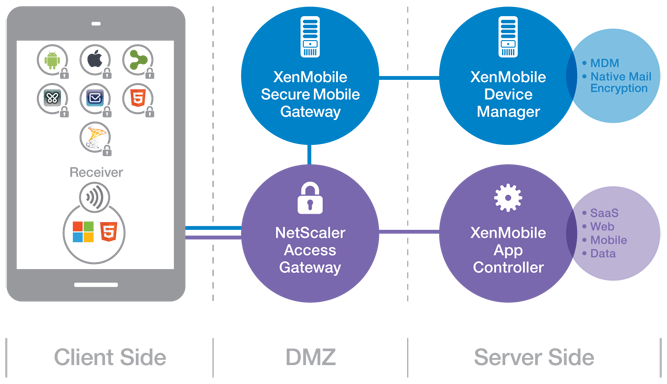
(Note: picture from Citrix)
So lets try to summarise the steps involved in getting these @WorkWeb and@WorkMail apps into your AppController and then published them to your users!
- Get your hands on a Macbook!
- Download the App Preparation Tool for iOS Applications and install it on the client
- Download and install Xcode (not 100% necessary but I recommend that you do that to simplify the creation/download of Distribution certificates and Distribution Profiles)
- Open XCode and open Preferences->Downloads,
 Read more…

#Citrix #AppController 2.5 Implementation Tips – #CloudGateway, #BYOD
Great blog post by Matthew Brooks!
AppController is a component of the Citrix CloudGateway Enterprise suite that orchestrates access to Enterprise Cloud applications. Those applications may take many forms including Mobile Applications, Software-as-a-Service hosted in public clouds, and Web links. Below I provided some tips to help with the implementation of AppController 2.5 (which is the latest version as of the publishing of this blog).
System Related
Including settings such as the Hostname, SSL certificates, and Restore.
TIPs:
- Take a hypervisor level snapshot after the initial installation so that you can easily return to that base level if configuration or integrations efforts go awry.
- The hostname cannot contain special characters in the AppController certificate signing request.
- The hostname must match SSL certificate.
- The system cert must be chained to its CA/(s).
Active Directory Related
Including settings such as the Server (Domain Controller), Base DN, and Service Account credentials.
TIPs:
- The AppController only supports integration with a single domain. Multiple domains require multiple AppControllers. The NetScaler Access Gateway may be configured to allow users to access a single fully qualified domain name, yet be directed to their respective domain AppController through the use of Global Groups. See CTX116169 for more informationhttp://support.citrix.com/article/CTX116169
- All user accounts must have a first name, last name, and email address configured or they will receive an authorization error when attempting to launch applications. The bind Administrator account must also have email address configured or directory integration will fail.
- Only LDAP (TCP 389) may be configured through the wizard that must be completed initially. Thereafter LDAPS (TCP 636) may be configured through the full administration menu.
- If the server name domain name is a load balanced DNS entry the initial import may work, yet subsequent bind attempts will fail. Alternatively you may use the IP address of an LDAPS load balancer on a Netscaler with specific domain controllers configured as services. See CTX135092 for more information http://support.citrix.com/article/CTX135092
Network Related
Including settings such as the IP address, @Workweb and NTP server.
TIPs:
- Use IP private addresses as system addresses if possible. When Trust Settings are configured for NetScaler Access Gateway it does not allow SSO to public addresses. If public addresses must be used the NetScaler may be configured with an SSL Bridge to access the AppController. See NetScaler Traffic Management document for more information.
- NTP must be configured or SAML authentication may fail for SaaS sites if the time difference is significant.
- When Trust Settings are configured for NetScaler Access…
Continue reading here!
//Richard




 The IT Melting Pot!