Archive
[Announcing] #ShareFile 2.0 for Android – #Citrix, #BYOD
Ok, Citrix has now also released an updated version of the ShareFile app for Android to incorporate the new security features there as well!
NICE!!!! 😀
Read the Citrix blog post below for more info and source link!
I’m pleased to announce the new version of the ShareFile application for Android tablets and phones. ShareFile for Android enables secure mobile work styles by providing users with a rich follow-me-data experience while offering IT the management and control needed to ensure sensitive corporate data is secure at all times. By 2020, the workplace will evolve to the point where there will be 7 desks for every 10 office workers, with each person accessing their company’s IT network from an average of 6 different devices.
According to a new report from Forrester, an estimated 258 million workers around the world choose their own laptops and 129 million buy their own smartphones. Currently 37% of all BYOD smartphones run on Google’s Android platform. The Citrix mobile application suite balances connectivity and personal freedom, allowing employees to access everything they need to securely conduct business regardless of whether they are working from home or on the road.
New Features
Pin Passcode |
Jail Break Detection |
| Gives users easier access to their data instead of having to type their password every time they start the application. | Allows administrators to prevent their users from accessing their ShareFile data from jail broken devices. |
 |
 |
Another security feature added to this release is local device encryption for improved security of sensitive data.
ShareFile in action
The Salinas Police Department Deputy….
Continue reading here!
#ShareFile app for #Windows 8 – #Citrix, #BYOD
Citrix leads the way with the new ShareFile app for Windows 8

Users are excited about tablets and the market is growing rapidly. With Windows 8, Microsoft is providing a great tablet OS as well as their own hardware in the Microsoft Surface RT and Surface Pro. This article from CIO indicates that a Forrester survey showed that 32% of users want their next work tablet to run Windows.
Citrix is bringing easy file sharing to the latest version of Windows. If you are one of those users looking to get a tablet running Windows 8 or if you have a laptop/desktop running Windows 8, we now have multiple ways to leverage ShareFile on Windows 8 with the introduction of the new ShareFile app in the Windows Store. This app provides a full-screen experience on Windows 8 for accessing ShareFile and integrates directly with the new Windows 8 charm bar for OS-level integration with the Search, Share, and Settings charms. Of course, we included support for the great device security features like remote wipe and users can login with their AD credentials. The app also supports these great features:
- Browse your account
- Download and view documents
- Request and send files via email
- Transfer big files
- Add users to folders on your ShareFile account
- Offline access to view downloaded files
- For Enterprise accounts, users will be able to access their data using their corporate credentials
- IT administrators will be able to control and audit access
Check out a video of the app in action on YouTube. More details…
Continue reading here!
//Richard
It’s here! #Citrix #Receiver for Win 8/RT 1.2
The first official release for your touch-enabled Win RT tablet or Windows 8 Pro device now on the Windows Store! It adds the ability to connect to XenApp Services and XenDesktop Services sites for Web Interface deployments, not just StoreFront enabled sites. Connections can be direct or through Access Gateway Enterprise Edition. We also added the ability to open ica files if you’re using browser access. And we shouldn’t overlook the ability to save your password, if allowed by server policy.
This version will be useable in more configurations.
Click here to try this version. It is still a good idea to ask your IT department if it can be used in your environment. IT managers can find details on configurations supported and settings at Citrix eDocs.
Here is what it provides:
- Secure access to virtual desktops and enterprise apps
- Secure access to Web and SaaS apps (requires CloudGateway Enterprise)
- Work anywhere on any Windows 8 computer or tablet
- Account configuration using your email address, a server URL, or a provisioning file
- Auto-provisioned applications
- Use one published app at a time, along with multiple Web and SaaS apps
- Automatic display of the keyboard when needed
- Use of native controls for selecting an item from a list
- Option to save your Receiver password if allowed by server
And more functionality is coming
Look for updates every few months. Among other improvements, we’ve started work on multi-touch, audio, session sharing (support for multiple sessions)…
Continue reading here!
//Richard
#Citrix #StoreFront Planning Guide
Ok, this product has caused some headache since it was released. And I must say that this guide is something that Citrix should have release a long time ago… there are so many companies out there struggling with how to deal with Web Interface being faced out and how/what to do with StoreFront!
So enjoy!
Download StoreFront Planning Guide!
//Richard
Mac Receiver Launches Application and Closes Abruptly – #Citrix, #Receiver
Ok, had a bit of a “challenge” today with my little Receiver 11.7 on my Macbook Air…. the darn thing just “vanished” after the XenApp/XenDesktop session was shown for about half a second…
And the solution was the following:
Symptoms
User is unable to login from a MacBook using the Citrix Receiver for Mac. The session launches and eventually disappears without any error message.
Cause
Since the Mac devices do not have a registry like Windows devices, a license needs to be issued to the client devices name. If the device does not have a name then it cannot be issued a license. It attempts to assign a license to a null value, which it cannot do and hence the session drops.
Resolution
- Find the System Preferences Icon on the toolbar.

- Open the Sharing folder in the System Preferences options.

Virtualizing your desktops? Six experts share their advice – #Citrix, #XenDesktop
If you follow a few simple principles, desktop virtualization projects are pretty straightforward.
But if you barrel ahead, ignoring little things like users, apps, data and hardware, you could be in for a bit of a train wreck.
So we thought we’d make this easy – with a new eBook that captures best-practice deployment advice from six of the most experienced desktop virtualization experts: Desktop Virtualization Deployment Insights: Six Experts Share Their Advice.

Download the free eBook from here: Desktop Virtualization Deployment Insights: Six experts share their advice
//Richard
SSO to StoreFront not working in CVPN mode – #Citrix, #NetScaler, #StoreFront
Single Sign-On from Access Gateway to StoreFront not working in CVPN mode
There is yet another “thing” to have in mind when setting up Access Gateway and StoreFront in CVPN mode!
It’s been an interesting day (or days/weeks/months I must admit) with some “issues” with a NetScaler ADC, Access Gateway with CVPN profiles and StoreFront 1.2. And one thing that we have been struggling with was Single Sign-On to StoreFront when we had the AG configured for CVPN access. And it was just this environment where I’ve seen this issue!!
After a lot of troubleshooting the Citrix guys came up with an explanation on why SSO from AG doesn’t work in this specific environment! And it’s not an obvious one to find I must say… but I now understand why it doesn’t work!
So let’s explain the design reason for why it doesn’t work (so bear with me, solution at the end!!)…
The following picture tries to give a VERY rough picture of how it could look like, clients on the Internet on the left, then a NetScaler ADC with the Access Gateway feature enabled and a vServer configured. This AG vServer has session policies and profiles for ICA proxy (old traditional ICA proxy policy) and the little newer CVPN mode. And YES; I’ve left out a lot of stuff like AD etc. to simplify this picture A LOT…

The overall idea and config is that AG authenticates the user and then shall do SSO to StoreFront. The CVPN policy have been created according to all best practices etc. (Citrix CloudGateway Express 2.0 – Implementation Guide).
But SSO still doesn’t work!! If you login through a browser when having the CVPN policy linked to the vServer you’ll see that authentication works perfectly but then when it tries to passthrough the authentication to StoreFront it fails.
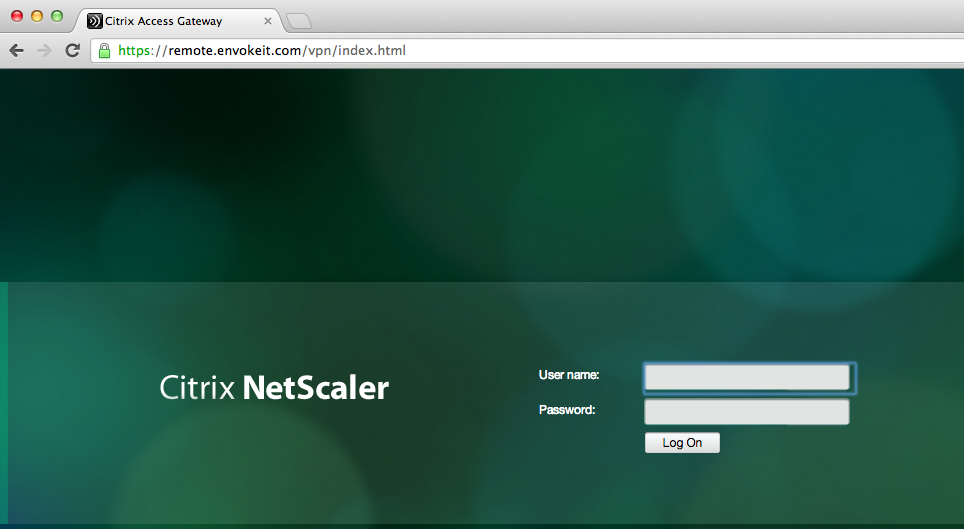
This picture just shows the login to the NetScaler ADC Access Gateway vServer:
Host checks/EPA scans are not for everyone – #Citrix, #NetScaler, #AccessGateway
This is an interesting blog post from Citrix… It captures a scenario that I know one of my previous customers was thinking of, so have a look at it!
The main thing that think of when reading this though is that EPA scans are NOT for everyone, I agree. And please also read my earlier posts on why it cannot be done with todays products from Citrix.
#Citrix #SmartAccess = A complete story or not? – #NetScaler #AGEE #EPA
Even though the latest Receiver Receivers changed some scenarios and enables host checks/EPA scans it still doesn’t provide the full picture. But I’ll be publishing a more detailed picture on why later, some late night I’ll be able to complete it! 😉
Here you have the blog post from Tobias Frigger:
A customer of one of my Citrix Consulting colleagues recently came up with an interesting request.
Like many others they are using Citrix NetScaler’s Access Gateway Enterprise Edition module to grant remote secure remote access to applications and desktops.
Additionally, they use a client management and software distribution solution to deploy the EPA plugin to client computers and therefore wanted to suppress Access Gateway offering the EPA scan plugin for download through the browser. This introduces some additional level of control over which client is entitled to connect through Access Gateway.
An approach restricting certain user groups from logging in by using group memberships is a more common scenario, but in this case the customer intended to restrict the end points and not the users. When end users lack administrative permissions to install custom software, preventing the download is indeed an effective measure.
A job for Citrix Consulting!
As you know, Access Gateway Enterprise Edition offers two ways of running Endpoint Analysis (EPA) scans – before and after authentication. Consequently, there are two procedures.
The formal requirements
- Remove the download button displayed when accessing the AGEE virtual server and the plugin is not detected by the browser or if the plugin is outdated
- Alter the message text such that it refers user to contact their system administrator if they think the plugin should be installed.
- When using a post-authentication EPA scan, add a “logout” button.

Backup
As a precaution, we want to make backup copies…
Continue reading here!
//Richard
#Citrix Receiver for HTML5 Version 1.1 Released – #Receiver
Citrix Receiver for HTML5 Version 1.1 is released.. And it now has the support for all the Major Desktop Browsers.
Version 1.1 supports the latest updates of the following Desktop browsers
- Internet Explorer 10
- Safari 6
- Google Chrome
- Firefox
You can download this from https://www.citrix.com/content/citrix/en_us/downloads/citrix-receiver/receivers-by-platform/receiver-for-html5/
eDocs Location : http://support.citrix.com/proddocs/topic/receiver-html5-11/receiver-html5-version-wrapper.html
Key things to check out for while installing and configuring Citrix Receiver for HTML5 v1.1
Direct Internal Acces
- XenApp 6.5 server to be updated with FP1 and latest Hotfix
- Install the NEW Citrix Receiver for HTML5 Version 1.1 on your Storefront 1.2 server (Uninstall the old version manually before installing this new version)
- Open the installed “Citrix HTML5 HDX Engine Configuration” tool and Add the “Receiver for Web” URLs to configure for HTML5 access
- You can now open the supported browsers listed above on the client side and enter the “Receiver for Web” URL
- If you are prompted with the logon screen where you have the option to download the native Citrix Receiver, just click on “Log on”
- Now, add your application/desktop and click on it to launch
- You have your application running in a browser Tab!!
- For this, you will just need to have the latest Access Gateway 10 version 10.0.71.6014.e
Forum : You can use Receiver for HTML5 Forum for reporting issues, questions, and general discussions.
KB articles : You can refer to the below KB articles to troubleshoot some of the cases.
Known Issue : With Internet…
Continue reading here!
//Richard




 The IT Melting Pot!
#Podio New Feature: Real-Time Commenting
New Feature: Let the Live Show Begin with Real-Time Commenting
12.02.13 Posted in Product News by Jon Froda
As we announced at the end of last year, 200,000 companies have now jumped on Podio to change the way they collaborate for the better. But there’s no resting here. We have grand plans for what the future or work will look like, something that we can reveal more about today.
One of the best things about Podio becoming part of Citrix last year is that we can bring great technologies together to enable collaboration like you’ve never imagined. And, we can do this faster than ever.
We’re aiming to add real-time collaboration to the structured responsibilities, deadlines, and the clear overview that Podio users already enjoy. This will bring live, in context, discussions right into Podio, creating the most complete collaboration experience ever.
Not on Podio yet and want to find out what this all about? That’s easy, sign up for free here.
Following the initial integration of GoToMeeting in Podio Apps last year we can now bring you further enhancements to Podio’s real-time capabilities, and there’s more to come… Here’s what’s new today:
Live commenting on items: When viewing any app item in Podio, perhaps a project or a sales lead, you’ll see new comments apear as soon as they’re posted by your coworkers. There’s no need to refresh the page or check your inbox.
Presence on items: Along with seeing how many people are following an item, you can now also see who’s viewing the item at the same time as you, reducing the chance of both editing the item at the same time, but also making it easier to start a conversation with your coworker who are also looking at the same item as you.
And one more thing… Like comments: Mouse over any comment in Podio and you’ll notice a new like icon. We’ve been testing this within the Podio team for a couple of week…
Continue reading here!
//Richard
Share this: