Archive
#Citrix #XenApp and #XenDesktop 7.5 is released
Finally it’s released, just go and download and enjoy (hopefully)! 😉
https://www.citrix.com/downloads/xendesktop/product-software/xendesktop-75-platinum.html
Documentation is available online in Citrix eDocs. Keeping in mind that the online documentation will be periodically updated, you may also download a PDF file with a current snapshot for offline use:
Admin Guide
Upgrade Guide
Install Guide
This single package contains the Core and components needed to deploy the server-side infrastructure supporting Windows 8.1 and Server 2012 R2 and includes Director, Studio, Delivery Controller, Virtual Delivery Agent, Personal vDisk, Universal Print Server, Receiver and StoreFront, Profile Management, HDX, Migration tool, License Server and CloudBridge (Branch Repeater) plug in.
//Richard
Bug in Citrix Receiver 13 for Linux – cannot connect with multiple STAs – @CitrixSupport, @CitrixReceiver, #Citrix
Ok, we’ve had some issues with Citrix Receiver version 13 for Linux.. and it’s not just ONE issue. I found one that I thought I just have to share… so it’s lab Saturday for me at the office in a true geek manner with two XenClients and my favourite MacBook!
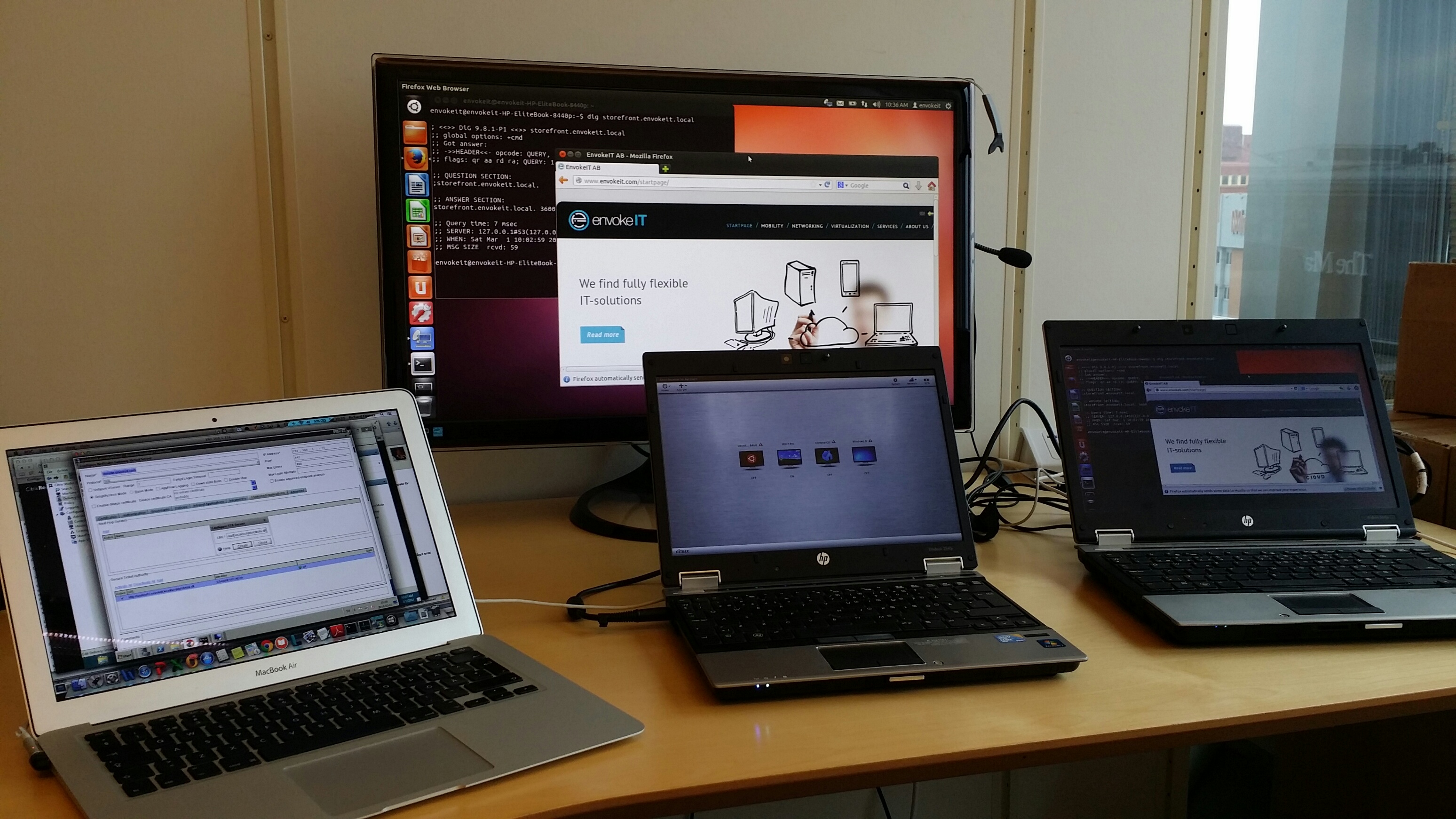
I guess that some of you have tried the Linux Receiver and knows how hard it is to get working, especially on a 64-bit distribution of Linux like Ubuntu 12.04 LTS och 13.10 LTS.
If you follow these instructions you can get it onto the device and then login through a browser (local Receiver UI may still not be full functioning!)..
https://help.ubuntu.com/community/CitrixICAClientHowTo
What I’m about to show you is that it’s not just only getting Receiver on the device and ensuring that the SSL certificates are trusted. You then have to be able to use it as well externally through a NetScaler Gateway (NSG) into StoreFront and your XenApp/XenDesktop VDA’s.
Just assume that you have a production environment that consists of a NetScaler Gateway and a StoreFront server, if you then in StoreFront have configured your NetScaler Gateway correctly and the appropriate STA configuration (with MULTIPLE STA’s) then you will notice that you can’t launch a session.
BTW, the recommendation from Citrix is to use multiple STA’s, right! See this from edocs:
For all deployments, if you are making resources provided by XenDesktop, XenApp, or VDI-in-a-Box available in the store, list on the Secure Ticket Authority (STA) page URLs for servers running the STA. Add URLs for multiple STAs to enable fault tolerance, listing the servers in order of priority to set the failover sequence. If you configured a grid-wide virtual IP address for your VDI-in-a-Box deployment, you need only specify this address to enable fault tolerance.
Important: VDI-in-a-Box STA URLs must be entered in the form https://serveraddress/dt/sta in the Add Secure Ticket Authority URL dialog box, where serveraddress is the FQDN or IP address of the VDI-in-a-Box server, or the grid-wide virtual IP address.
The STA is hosted on XenDesktop, XenApp, and VDI-in-a-Box servers and issues session tickets in response to connection requests. These session tickets form the basis of authentication and authorization for access to XenDesktop, XenApp, and VDI-in-a-Box resources.
If you want XenDesktop, XenApp, and VDI-in-a-Box to keep disconnected sessions open while Citrix Receiver attempts to reconnect automatically, select theEnable session reliability check box. If you configured multiple STAs and want to ensure that session reliability is always available, select the Request tickets from two STAs, where available check box. Read more…
#XenDesktop 7.1 on #Hyper-V Pilot Guide! – #Citrix
This is a great PoC guide, some thing I would have done differently in detail but overall great work!
You’ve heard of XenDesktop 7.1, experienced a demo and worked through the Reviewer’s Guide. Now where do you turn when you’re ready for a PoC, pilot and preparations for a full-scale rollout?
Here on the Citrix Readiness and Enablement Team, we’re always looking for ways to empower our customers to be successful on their projects. To this end, we’ve taken one of our most popular hands-on lab guides used to train hundreds of internal and external students and reworked it for consumption by the masses. The XenDesktop 7.1 on Hyper-V Pilot Guide can be download fromhttps://citrix.sharefile.com/d/scaa256260df4ab3b. In this guide we cover the following topics with step-by-step instructions and screenshots:
– Configuring System Center Virtual Machine Manager and Installing the Agent
– Setting Up SQL Server Mirroring for a XenDesktop site
– Setting up the XenDesktop Site
– Joining a Controller to an Existing Site
– Configuring StoreFront and Installing Certificates
– Configuring NetScaler for StoreFront Load Balancing
– Installing the VDA Software on Desktop and Server VMs
– Creating Catalogs of Machine for Desktops and Servers
– Creating Delivery Groups for Desktops and Servers
– Delivering Installed and App-V Applications
– Provisioning Services Configuration and Optimizations
– Using the XenDesktop Setup Wizard
– Setting up Remote Access with NetScaler and StoreFront
– Internal and External Connectivity Scenarios
– Load Evaluator Policies
– Monitoring with Director
– Exploring Configuration Logging
– Exploring Delegated Administration
– Working with PowerShell
And much more!
Take a look through the document and let us know your thoughts…
IMPORTANT: This guide is designed to be used as a reference for building PoC and/or pilot environments. Production environments should always be…
Continue reading here!
//Richard
#VDI Calculator v5 is Now Available with Major New Features – #IaaS, #Storage, #BYOD via @andreleibovici
This is awesome! Great work by @andreleibovici!
I am happy to announce the General Availability of the new VDI Calculator v5. This new version is the single biggest release since I started delivering the calculator. I have completely re-architected the way the calculator works, allowing multiple types of desktops to be configured in a single calculation for a single solution.
All existing features have been retained and will work in the exact same way you are used to, but you now have the ability to select different options for different types of desktops or desktop pools.
As an example, you may choose Desktop Type 1 to be a ‘student’ desktop using Linked Clones with 10 different pools; conversely you may choose Desktop Type 2 to be a ‘professor’ desktop using Full Clones with 5 individual pools. This new calculator gives you much more granular control over your calculations eliminating repetitive tasks when sizing larger environments.
To enable multi-desktop pool calculations just select ‘-’ and ‘+’ in the top bar menu.

Another additional feature is what I call ‘Ask for Help‘. During the application session when you select the Update option a new screen will show up asking if you would like to be contacted by VDI solutions vendors that can help reduce costs, improve performance or improve manageability of your VDI solution. If you are interested…
Continue reading here!
//Richard
#XenMobile Mobility promotion from #Citrix – #EMM, #BYOD, #XenDesktop
XenMobile mobile device management (MDM) or enterprise mobile management (EMM) capabilities for the price of Software Maintenance!
Personally I wonder if this is a move triggered by VMware’s acquisition of AirWatch where Citrix now is kind of pushing it’s MDM solution out the door to really get some more market, and at the same time push VMware to give their new MDM capabilities away together with Horizon View…
This is an interesting and good action, thank you Citrix!
XenApp and XenDesktop Platinum Mobility Promotion
Promotion effective From January 31, 2014 to September 30, 2014
|
The XenApp and XenDesktop Platinum Mobility Promotion is a limited-time promotion that offers new or existing XenApp or XenDesktop Platinum customers with perpetual licenses current on Subscription Advantage (SA) the ability to receive FREE XenMobile MDM edition licenses or get 20% off XenMobile Enterprise licenses with the purchase of first year Software Maintenance for all licenses obtained via this promotion. For either XenMobile promotion options, the maximum number of discounted licenses customers can purchase is based on the total number of XenApp and XenDesktop Platinum licenses owned. XenMobile MDM edition provides key device-level security capabilities for users accessing XenApp and XenDesktop desktops and apps on mobile devices. The mobile device management (MDM) solution lets you:
XenMobile Enterprise edition supports the next step in your EMM strategy by complementing the device-level security capabilities of XenMobile MDM edition with app-level security features. These include:
|
Continue reading here!
//Richard
GREAT VIDEO – #Citrix #XenDesktop vs. #VMware #Horizon #View installation video
This is really funny! Have a look at this video to see how you can compare a XenDesktop and a Horizon View installation side-by-side!
And another thing that is kind of funny is that VMware still compares Horizon View with XenDesktop 5.6: https://www.vmware.com/files/pdf/techpaper/VMware-View-vs-Citrix-XenDesktop-Datasheet.pdf
//Richard
#Netscaler Insight and Integration with #XenDesktop Director – via @msandbu
Great blog post by Marius! 🙂
This is another one of Citrix hidden gems, Netscaler Insight. This product has been available from Citrix some time now, but with the latest update in became alot more useful. Insight is an virtual applance from Citrix which gathers AppFlow data and statistics from Netscaler to show performance data, kinda like old Edgesight. (NOTE: In order to use this functionality against Netscaler it requires atleast Netscaler Enterprise or Platinum)
Insight has two specific functions, called Web Insight and HDX insight.
Web Insight shows traffic related to web-traffic, for instance how many users, what ip-adresses, what kind of content etc.
HDX Insight is related to Access Gateway functionality of Citrix to show for instance how many users have accessed the solution, what kind of applications have they used, what kind of latency did the clients have to the netscaler etc.
You can download this VPX from mycitrix under Netscaler downloads, important to note as of now it is only supported on Vmware and XenServer (They haven’t mentioned any support coming for Hyper-V but I’m guessing its coming.
The setup is pretty simple like a regular Netscaler we need to define an IP-address and subnet mask (Note that the VPX does not require an license since it will only gather data from Netscaler appliances that have a platform license and it does not work on regular Netscaler gateways)
After we have setup the Insight VPX we can access it via web-gui, the username and password here is the same as Netscaler nsroot & nsroot

After this is setup we need to enable the insight features, we can start by setting up HDX insight, here we need to define a expression that allows all Gateway traffic to be gathered.
Here we just need to enable VPN equals true. We can also add mulitple Netscalers here, if you have a cluster or HA setup we need to add both nodes.

After we have added the node, just choose configure on the node and choose VPN from the list and choose expression true.
Sizing #XenDesktop 7 App Edition VMs – #Citrix
A good update on VM sizing by Daniel Feller!
In the Mobilizing Windows applications for 500 users design guide, we made the recommendation to allocate 8vCPUs for each virtual XenDesktop 7 App Edition host (formerly known as XenApp). Spreading this out across a server with two Intel Xeon E5-2690 @2.9GHz processors and 192 GB of RAM, we were yielding about 200 users per physical server and roughly 50 users per virtual server.
Of course, the design guide is the end result of a lot of testing by the Citrix Solutions Lab. During the tests, we had the Solutions Lab compare many (and I mean many) different configurations where they changed the number of vCPU, RAM size, and RAM allocation (dynamic/static) as well as a few other things. All of these tests were done with Windows Server 2012 with Hyper-V. We ended up with the following:

A few interesting things:
- Dynamic vs static RAM in Hyper-V appeared to have little, if any, impact on overall scalability. The only time when the RAM allocation had a negative impact was when not enough RAM was allocated (no surprise there).
- The 8vCPU and the 4vCPU configurations resulted in very similar user concurrency levels. Get ready… The battle is about to begin as to whether we should use 8 or 4 vCPU. (Is anyone else besides me having flashbacks to 2009?)
A few years ago, we debated about using 2vCPU or 4vCPU for XenApp 5 virtual machines. A few years later, the debate is resurfacing but this time, the numbers have doubled: 4 or 8. Here is what you should be thinking about… VMs are getting bigger because the hardware is getting faster, RAM is getting cheaper and the hypervisors are getting better…
Continue reading here!
//Richard
#XenDesktop 7.1 Service Template Tech Preview for System Center 2012 Virtual Machine Manager – #SCVMM
This is interesting! Really good and can’t wait to try it out!
Introduction
Let’s face it, installing distributed, enterprise-class virtual desktop and server based computing infrastructure is time consuming and complex. The infrastructure consists of many components that are installed on individual servers and then configured to work together. Traditionally this has largely been a manual, error prone process.
The Citrix XenDesktop 7.1 Service Template for System Center 2012 Virtual Machine Manager (SCVMM) leverages the rich automation capabilities available in Microsoft’s private cloud offering to significantly streamline and simplify the installation experience. The XenDesktop 7.1 Service Template enables rapid deployment of virtual app and desktop infrastructure on Microsoft System Center 2012 private clouds. This Tech Preview is available now and includes the latest 7.1 version of XenDesktop that supports Windows Server 2012 R2 and System Center 2012 R2 Virtual Machine Manager.
Key Benefits:
- Rapid Deployment – A fully configured XenDesktop 7.1 deployment that adheres to Citrix best practices is automatically installed in about an hour; a manual installation can take a day or more.
- Reduction of human errors and the unwanted consequences – IT administrators answer 9 questions about the XenDesktop deployment, including the VM Network to use, the domain to join, the SQL server used to host the database, the SCVMM server to host the desktops, and the administrative service accounts to connect to each of these resources. Once this information is entered, the Service Template automation installs the XenDesktop infrastructure the same way, every time, ensuring consistency and correctness.
- Reduction in cost of IT Operations – XenDesktop infrastructure consistently configured with automation is less costly to support because the configuration adheres to best practice standards.
- Free highly skilled and knowledgeable staff from repeatable and mundane tasks – A Citrix administrator’s time is better spent focused on ensuring that users get access to the applications they need, rather than lengthy production installation tasks.
- Simplified Eval to Retail Conversion – Windows Server 2012 and later, as well as XenDesktop 7.1, support conversion of evaluation product keys to retail keys. This means that a successful POC deployment of the XenDesktop 7.1 Service Template is easily converted to a fully supported and properly configured production deployment.
- Easy Scale-Out for greater capacity – SCVMM Service Templates support a scale-out model to increase user capacity. For example, as user demand increases additional XenDesktop Controllers and StoreFront servers are easily added with a few clicks and are automatically joined to the XenDesktop site.
The XenDesktop Service Templates were developed and tested with the support of our friends and partners at Dell, who, in support of the release of XenDesktop 7.1 and the Service Template technical preview, are expected to launch new and innovative solutions that include these and other automation capabilities this quarter. These solutions are based on the Dell DVS Enterprise for Citrix XenDesktop solutions.
Simplification of Distributed Deployments
The XenDesktop 7.1 in-box installation wizard is a fantastic user experience that automatically installs all the required prerequisites and XenDesktop components in under 30 minutes. The result is a fully installed XenDesktop deployment, all on a single server, that is excellent for POCs and product evaluations. The installation and configuration challenges occur when you want to install XenDesktop in production, with enterprise-class scalability, distributed across multiple servers.
Manual Installation Steps

Citrix Project Accelerator updated – #XenDesktop
“Customize My Design”, the Design release of Project Accelerator is here! We listened to your feedback and have delivered the ability to change FlexCast, application delivery, profiles and over 30 other decisions for your XenDesktop architecture. Across these decisions you will now be able to:
- Tailor your design to fit organizational and end user needs
- Visualize how your design “tweaks” affect hardware sizing and architecture
- On-the-fly comparison of Citrix Recommendations to your design decisions
- Review “Architect Comments”, guidance from the Citrix experts for each Decision
“Customize my Design” is the next step for Project Accelerator; the application that simplifies getting your XenDesktop, XenApp, or XenClient deployment done successfully the first time. It’s the Citrix environment where customers, partners, and Citrites can design a desktop virtualization project that more closely suits their business priorities, end user needs, and organizational preferences. And it is back-stopped by the real-world experience of Citrix Consulting, so you can use the results in your project.
Check it out right now or read more about what Project Accelerator can do for you here. Then tell us what you like, and let us…
Continue reading here!
//Richard



 The IT Melting Pot!