Archive
#Windows server 2012 Storage Spaces – using PowerShell – via LazyWinAdmin
Very good work on this blog post about Windows Storage Spaces!
WS2012 Storage – Creating a Storage Pool and a Storage Space (aka Virtual Disk) using PowerShell

In my previous posts I talked about how to use NFS and iSCSI technologies hosted on Windows Server 2012 and how to deploy those to my Home Lab ESXi servers.
- WS2012 Storage – iSCSI Target Server – Create an iSCSI target using PowerShell
- WS2012 Storage – iSCSI Target Server – Configuring an iSCSI Initiator on VMware vSphere 5.1
- WS2012 Storage – NFS Server – Configure NFS for VMware vSphere 5.1
One point I did not covered was: How to do the Initial setup with the physical disk, Storage pooling and the creating the Virtual Disk(s) ?
The cost to acquire and manage highly available and reliable storage can represent a significant part of the IT budget. Windows Server 2012 addresses this issue by delivering a sophisticated virtualized storage feature called Storage Spaces as part of the WS2012 Storage platform. This provides an alternative option for companies that require advanced storage capabilities at lower price point.
Overview
- Terminology
- Storage Virtualization Concept
- Deployment Model of a Storage Space
- Quick look at Storage Management under Windows Server 2012Identifying the physical disk(s)
- Server Manager – Volumes
- PowerShell – Module Storage
- Creating the Storage Pool
- Creating the Virtual Disk
- Initializing the Virtual Disk
- Partitioning and Formating
Terminology
Storage Pool: Abstraction of multiple physical disks into a logical construct with specified capacity
Group of physical disks into a container, the so-called storage pool, such that the total capacity collectively presented by those associated physical disks can appear and become manageable as a single and seemingly continuous space.
There are two primary types of pools which are used in conjunction with Storage Spaces, as well as the management API in Windows Server 2012: Primordial Pool and Concrete Pool.
Primordial Pool: The Primordial pool represents all of the disks that Storage Spaces is able to enumerate, regardless of whether they are currently being used for a concrete pool. Physical Disks in the Primordial pool have a property named CanPool equal to “True” when they meet the requirements to create a concrete pool.
Concrete Pool: A Concrete pool is a specific collection of Physical Disks that was formed by the user to allow creating Storage Spaces (aka Virtual Disks).
True or False: Always use Provisioning Services – #Citrix, #PVS, #MCS
Another good blog post from Daniel Feller:
Test your Citrix muscle…
True or False: Always use Provisioning Services
Answer: False
There has always been this aura around Machine Creation Services in that it could not hold a candle to Provisioning Services; that you would be completely insane to implement this feature in any but the simplest/smallest deployments.
How did we get to this myth? Back in March of 2011 I blogged about deciding between MCS and PVS. I wanted to help people decide between using Provisioning Services and the newly released Machine Creation Services. Back in 2011, MCS an alternative to PVS in that MCS was easy to setup, but had some limitations when compared to PVS. My blog and decision tree were used to help steer people into the PVS route except for the use cases where MCS made sense.
Two and a half years passed and over that time, MCS has grown up. Unfortunately, I got very busy and didn’t keep this decision matrix updated. I blame the XenDesktop product group. How dare they improve our products. Don’t they know this causes me more work? 
It’s time to make some updates based on improvements of XenDesktop 7 (and these improvements aren’t just on the MCS side but also on the PVS side as well).

So let’s break it down:
- Hosted VDI desktops only: MCS in XenDesktop 7 now supports XenApp hosts. This is really cool, and am very happy about this improvement as so many organizations understand that XA plays a huge part in any successful VDI project.
- Dedicated Desktops: Before PVD, I was no fan of doing dedicated VDI desktops with PVS. With PVD, PVS dedicated desktops is now much more feasible, like it always was with MCS
- Boot/Logon Storms: PVS, if configured correctly, would cache many of the reads into system memory, helping to reduce the Read IOPS. Hypervisors have improved over the past 2 years to help us with the large number of Read disk operations. This helps lessen the impact of the boot/logon storms when using MCS.
How to check which #NetScaler policy that your #Citrix #Receiver or web browser hits?
Ok, this is a common issue that you’ll end up in when setting up Access Gateway access scenarios:
How do you know which policy that is hit when your different Receivers are logging in?
Well, there are a couple of nice commands that can help you troubleshooting your access scenario! I guess that most of you have a simple scenario where you have one domain to authenticate against and some simple PNA, CVPN and potentially SSL VPN policies and profiles to deal with, and they are all linked to the virtual server like something like this simple example:

But in more complex scenarios you may end up controlling which browser the user is accessing with (for giving nice error messages instead of Citrix default messages when users may use an unsupported browser etc.), or when you have multiple AD domains and AD groups to link different policies to etc. Then it may be complex and you have multiple policies and profiles for the same config with minor changes like the SSO domain name etc. So how do you then troubleshoot that easily?
First we have the must know command that hooks into the auth process of the NetScaler and gives you a view of the authentication process:
cat /tmp/aaad.debug
When you run that and you authenticate you’ll see the result of your auth process agains for instance LDAP and RADIUS sources like the result here when I logged in to our little environment:
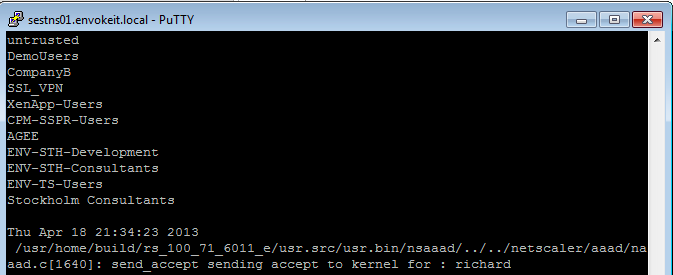
At the top of the output you see all the AD groups that I’m a member of that needs to match the group that you like to use on the NetScaler side, and last you see that accept from AD for my authentication request.
Then you know that you’re authentication ok, but which of the session polices are we hitting? Then you need to have a look at this great command:
nsconmsg -d current -g pol_hits
This is the output when I access using my Receiver on OS X:

Get Started with #SharePoint Server 2013 Quickly on #Windows #Azure
Another good blog posts by Bill Baer (Microsoft) that shows how easy it is to try out SharePoint Server 2013 on Azure!
In order to remain competitive in today’s business climate you need to be able to respond to change and challenges quickly. Sometimes that means adjusting your SharePoint infrastructure on a moment’s notice to maintain a competitive advantage.
Infrastructure as a Service solves these challenges through a ready-to-use, pay as you go solution which means you can deploy in hours as opposed to days, whether you’re looking to deploy a simple SharePoint-based Internet site or to quickly provision a development environment.
SharePoint 2013 on Windows Azure Virtual Machines enables you to rapidly deploy and host your business websites on a secure, scalable cloud infrastructure.
What are Windows Azure Virtual Machines?
Windows Azure Virtual Machines enable organizations to deploy custom Windows Server images to Windows Azure. Virtual Machines provide developers complete control of the application environment and allow easy migration of existing applications to the cloud. To learn more about Windows Azure Virtual Machines see also http://www.windowsazure.com/en-us/home/scenarios/virtual-machines/.
How can I benefit from Azure IaaS?
Business Mobility
Windows Azure Virtual Machines allow you to easily move your applications and infrastructure back and forth from on-premises to the cloud without requiring any changes to the existing code – if you’ve virtualized SharePoint 2013 in on-premises you can quickly and easily move your virtual hard drives between your datacenter and the cloud.
License Mobility
With License Mobility through Software Assurance, you can deploy certain server application licenses purchased under your Volume Licensing agreement in an Authorized Mobility Partner’s datacenter. To learn more about License Mobility see also http://www.microsoft.com/licensing/software-assurance/license-mobility.aspx . With License Mobility through Software Assurance, you can deploy certain server application licenses purchased under your Volume Licensing agreement in an Authorized Mobility Partner’s datacenter. Read more…
#Windows #Azure Virtual Machines and Virtual Network now are generally available
As I use to write; THIS IS INTERESTING! I think that Microsoft will take some market share for sure with their cloud service offerings!
Windows Azure Virtual Machines and Virtual Network now are generally available. We have new prices for Virtual Machines, Virtual Network, and Cloud Services.
Today is a major milestone for Windows Azure and all of our customers and partners. We are excited to announce that Windows Azure Virtual Machines and Windows Azure Virtual Network now are generally available. We also want to update you on new prices for Virtual Machines, Virtual Network, and Cloud Services.
Virtual Machines and Virtual Network help you meet changing business needs by providing on-demand, scalable infrastructure. These infrastructure services enable you to extend your data centers and workloads into the cloud while using your existing skills and investments. With these services, you can:
- Provision Microsoft SharePoint farms in minutes without up-front hardware investments. Integrate full-trust code to run rich apps and provide Internet-facing collaboration sites.
- Prototype your newest app or extend data marts into the cloud using Virtual Machines as a robust infrastructure for Microsoft SQL Server software. Scale on demand and connect to your on-premises infrastructure using Virtual Network.
- Embrace rapid innovation using the cloud for development and test scenarios. You can spin up any test lab or sandbox quickly, and be agile in your learning, development, and prototyping.
Let’s take a closer look at the news that we are announcing today with general availability.
New high-memory instances for Virtual Machines
When your apps need more memory, new 28-gigabyte (GB) and 56-GB instances deliver.
Updated SLA
When you deploy multiple instances of Virtual Machines, Microsoft provides a financially backed 99.95 percent monthly service level agreement (SLA).
Customer support
Our customer support team is ready and available to help you troubleshoot 24 hours a day, seven days a week. We have several support plans tailored to meet your needs—from basic developer support to Premier Support. When you work with Microsoft, you have a single vendor to call for cloud and on-premises needs.
Validated workloads
The best of Microsoft server products are validated to run on Virtual Machines, including Microsoft Dynamics NAV 2013, SharePoint Server 2013, BizTalk Server 2013, and more. We also offer prebuilt virtual machine images—such as BizTalk Server and SQL Server—through the Windows Azure Virtual Machines Image Gallery with hourly pricing. Prebuilt Linux images—such as CentOS, Ubuntu, and Suse Linux Enterprise Server (SLES)—are available in the Image Gallery from commercial distributors. In addition, a wide variety of the most popular open source applications are available as prebuilt images in VM Depot, a self-service community portal. Read more…




 The IT Melting Pot!